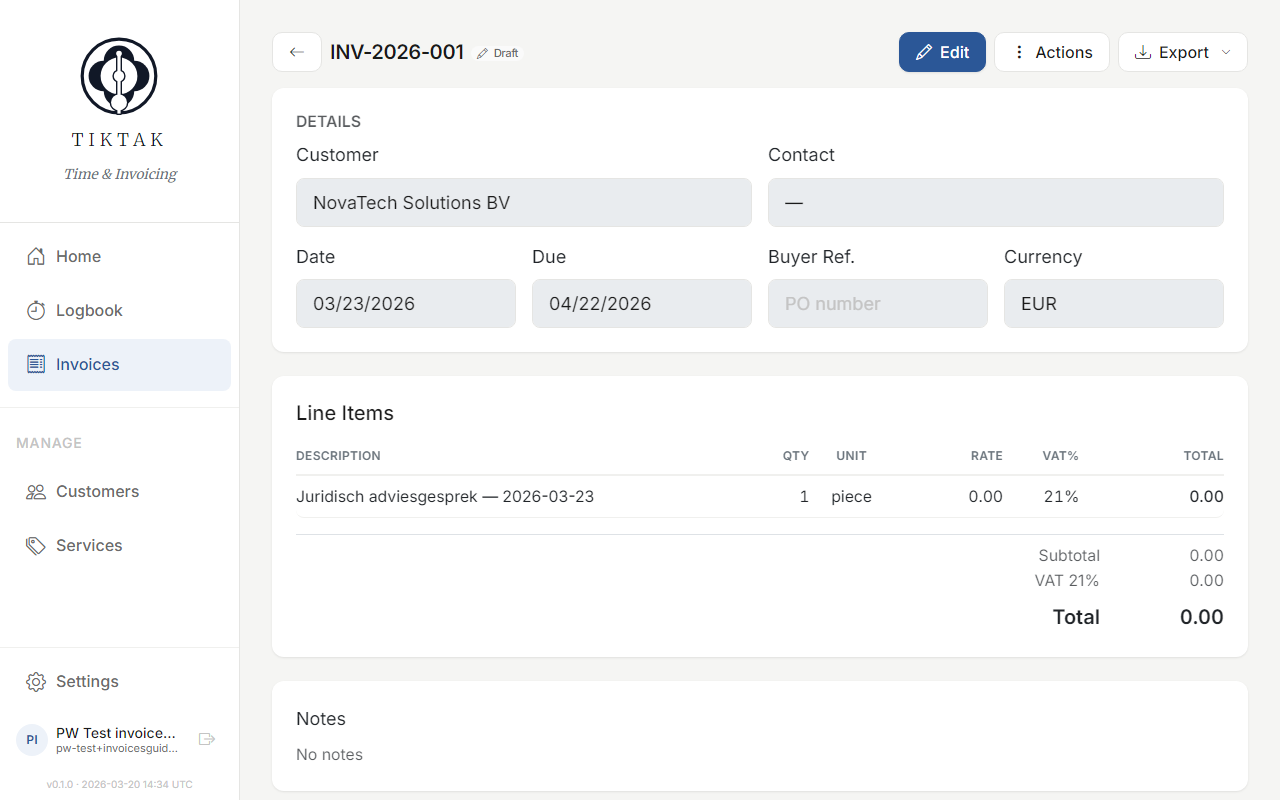
Invoices
Turn your logged hours into professional invoices. TikTak generates them from your time entries, calculates totals, and lets you track payment status.
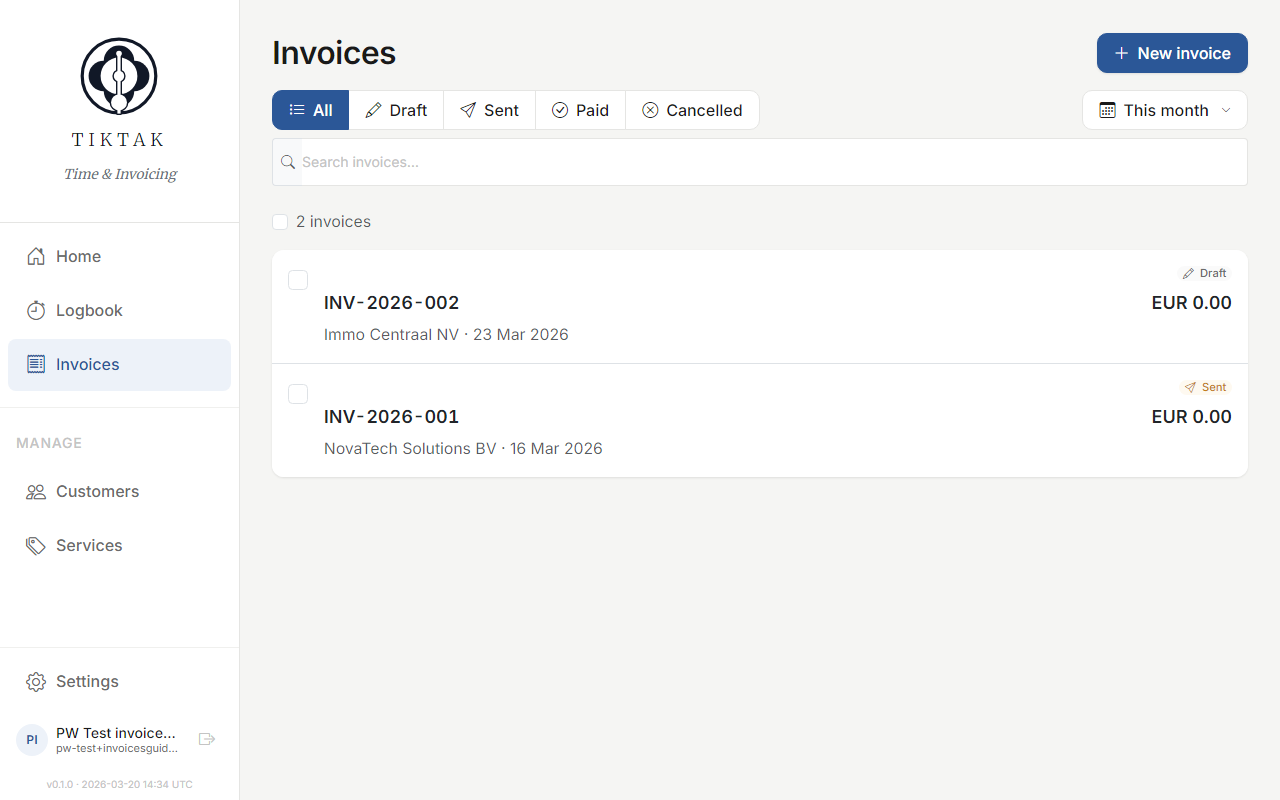
Invoice list
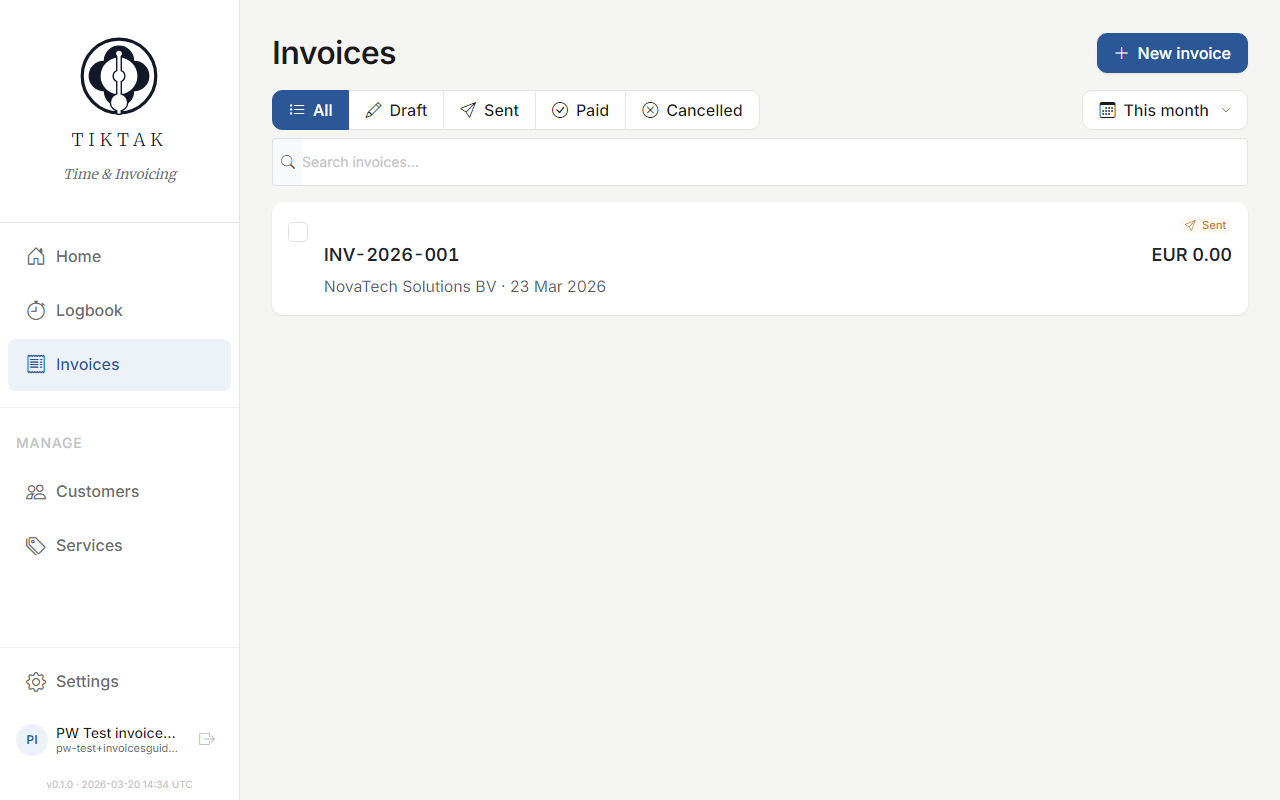
The Invoices page shows all your invoices with their status, amount, and due date. Filter by status (Draft, Sent, Paid, Overdue) to focus on what needs attention.
Creating an invoice
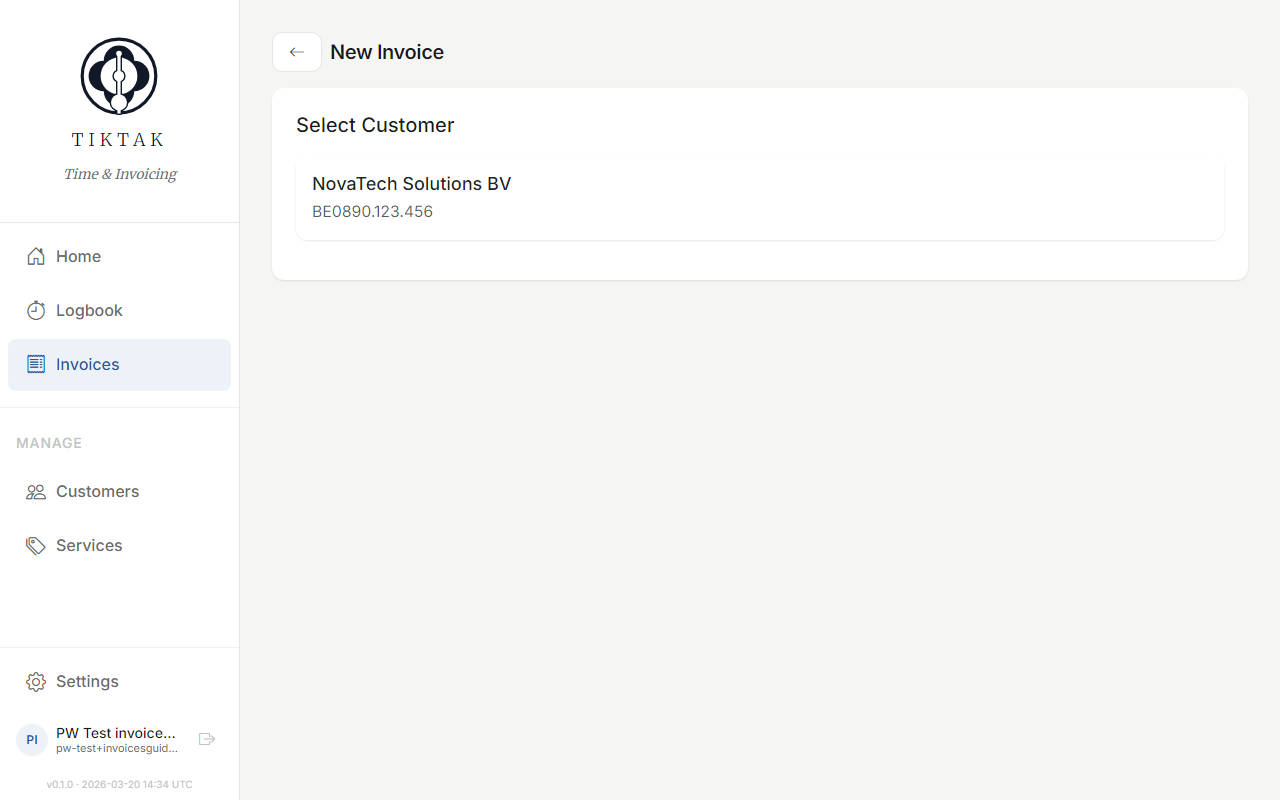
Click + New to start the invoice wizard. Select a customer, choose which time entries to include, and TikTak generates the invoice automatically.
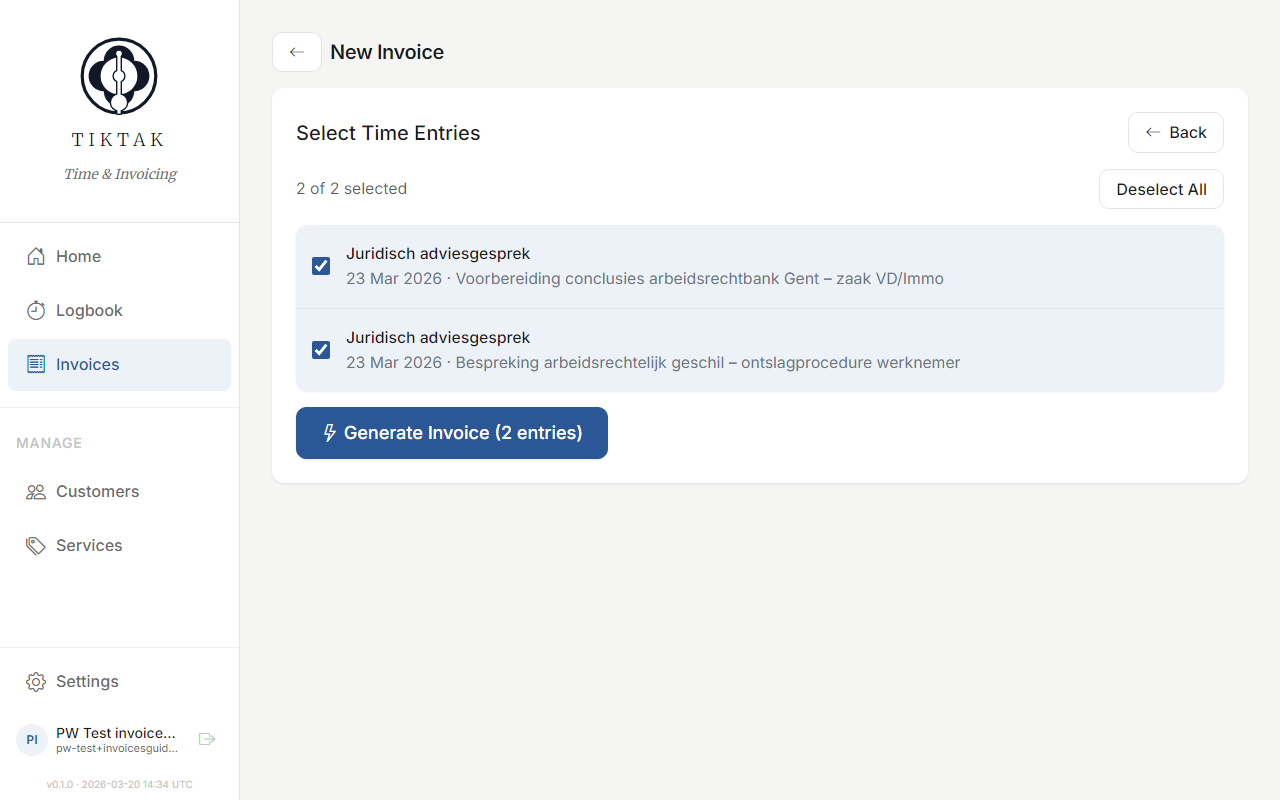
Tip: Only unbilled time entries appear in the wizard. Once an entry is on an invoice, it won't show up again.
Invoice editor
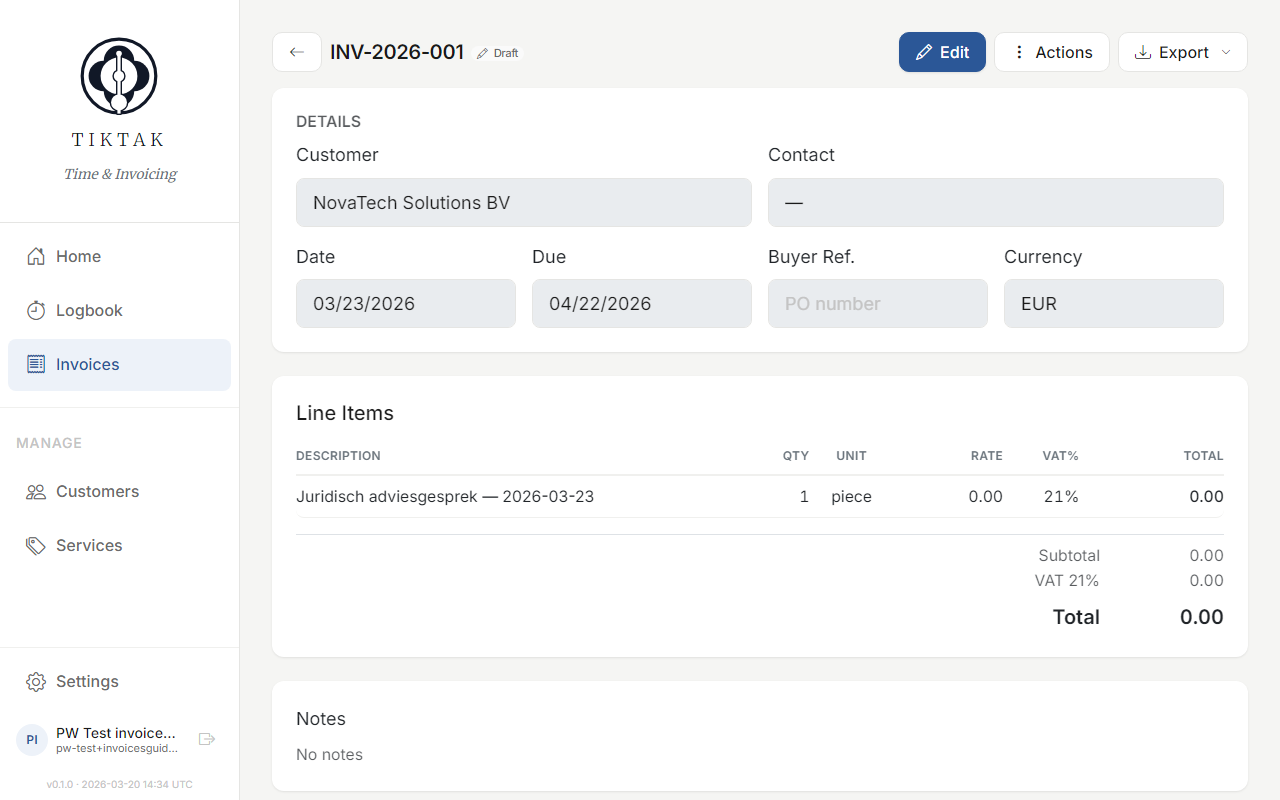
After generating, you can review and edit the invoice. Add custom line items, adjust quantities, change the due date, or add notes.
Status tracking
Track each invoice through its lifecycle: Draft → Sent → Paid. Mark invoices as sent when you email them, and as paid when payment arrives.
Export & PDF
Download any invoice as a professionally formatted PDF, ready to send to your client or accountant.